Test MCP servers
ToolHive's playground lets you test and validate MCP servers directly in the UI without requiring additional client setup. This streamlined testing environment helps you quickly evaluate functionality and behavior before deploying MCP servers to production environments.
Key capabilities
Instant testing of MCP servers
Configure your AI model providers, select your MCP servers and tools, and begin testing immediately in the desktop app. The playground eliminates the friction of setting up external AI clients just to validate that your MCP servers work correctly.
Detailed interaction logs
See tool details, parameters, and execution results directly in the UI, ensuring full visibility into tool performance and responses. Every interaction is logged, making it easy to understand exactly what your MCP servers are doing and how they respond to requests.
Integrated ToolHive management
The playground includes a built-in MCP server that lets you manage your other MCP servers directly through natural language commands. You can list servers, check their status, start or stop them, and perform other management tasks using conversational AI.
Threaded conversations
Keep separate testing sessions in their own chat threads. The sidebar groups your conversations into Starred at the top and Recents below, so the threads you use most stay within reach. Use New chat to start fresh, give each thread a descriptive name, and remove old runs when you're done.
Attachments
Send images and PDFs along with your prompts so the model can analyze screenshots, diagrams, logs, or reference documents while it calls your MCP tools. Each message accepts up to 5 files, and each file can be up to 10 MB.
Getting started
To start using the playground:
-
Access the playground: Click the Playground tab in the ToolHive UI navigation bar.
-
Configure provider settings: Click Provider Settings to set up access to AI model providers:
- OpenAI: Enter your OpenAI API key to use GPT models
- Anthropic: Add your Anthropic API key for Claude models
- Google: Configure Google AI API key for Gemini models
- xAI: Set up xAI API key for Grok models
- Ollama: Enter the server URL to connect to your local Ollama instance
(default:
http://localhost:11434) - LM Studio: Enter the server URL from the Developer section in LM
Studio where you started the local server (default:
http://localhost:1234) - OpenRouter: Add OpenRouter API key for access to multiple model providers
-
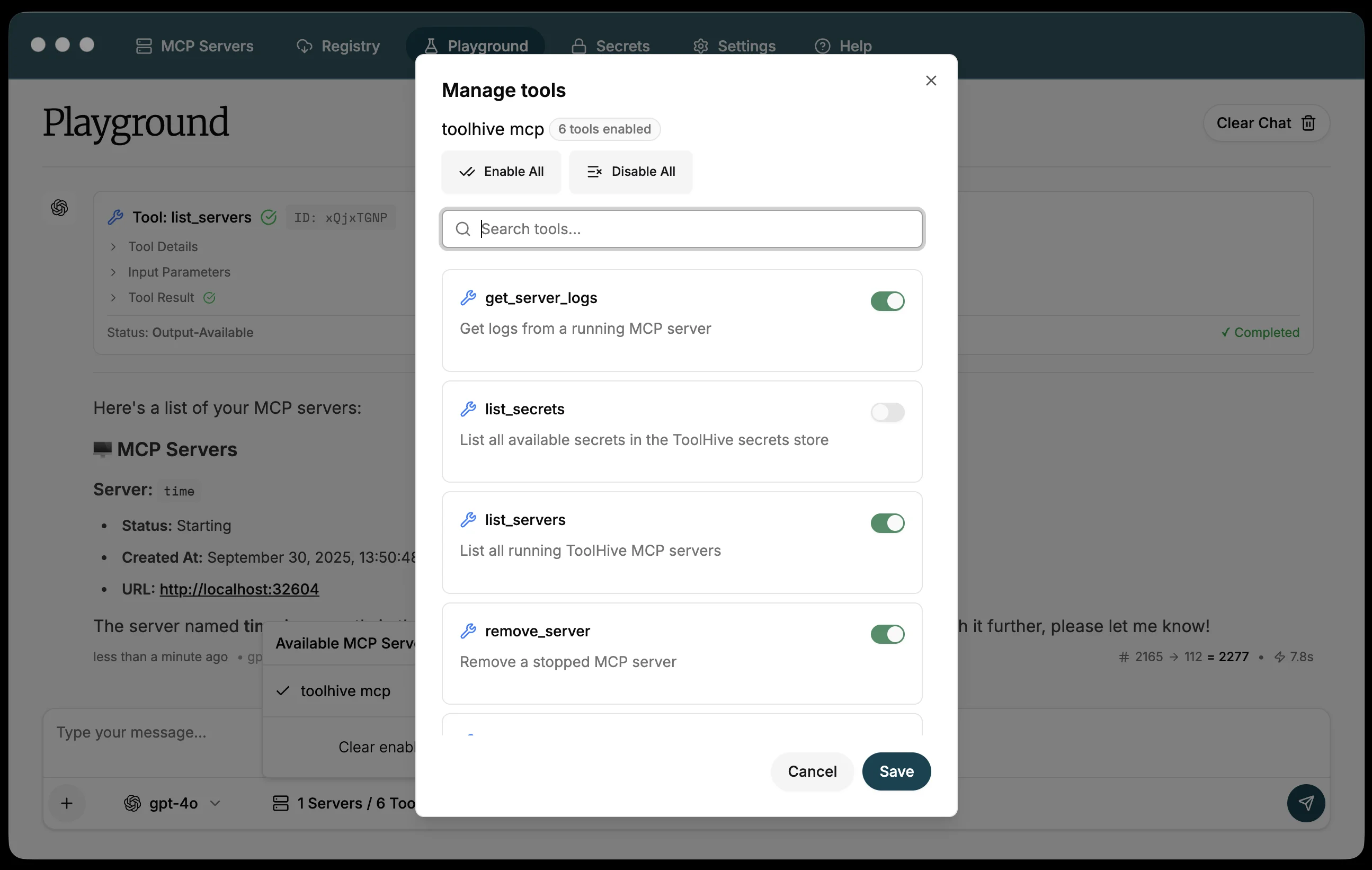
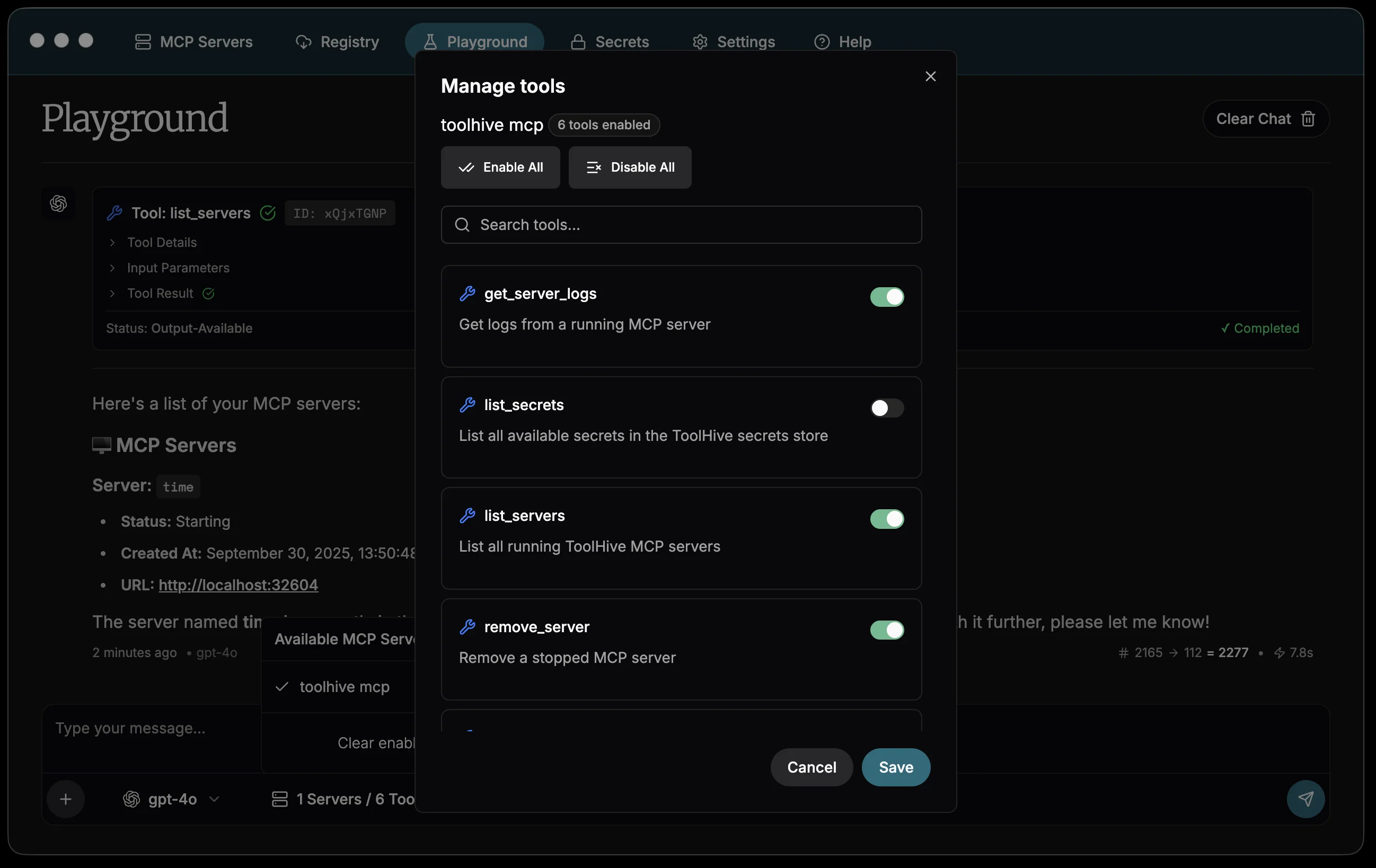
Select MCP tools: Click the tools icon to manage which MCP servers and tools are available in the playground.
- View all your running MCP servers
- Enable or disable specific tools from each server
- Search and filter tools by name or functionality
- The
toolhive mcpserver is included by default, providing management capabilities
 tip
tipFor more control over tool availability, use Customize tools to permanently configure which tools are enabled for each registry server. The playground tool selection is temporary and only affects your testing session.
-
Start testing: Begin chatting with your chosen AI model. The model will have access to all enabled MCP tools and can execute them based on your requests.
-
Manage chat threads: Use the sidebar to keep separate threads for different testing scenarios.
- Click New chat at the top of the sidebar to start a fresh thread.
- Double-click a thread row, or open its Thread options menu and choose
Rename, to give it a descriptive name. New threads show as
New chatuntil you rename them. - Choose Star in the Thread options menu to pin a thread under Starred at the top of the sidebar; choose Unstar to remove it from the starred list.
- Choose Delete to remove a thread. The playground asks
Delete "<THREAD_NAME>"? This cannot be undone.before removing it.
-
Attach images or PDFs: To send a file with your message, drag it onto the playground or open the composer toolbar menu and choose Add images or PDFs. You can attach up to 5 files per message, and each file must be 10 MB or smaller. Supported types are images and PDFs.
Using the playground
Testing MCP server functionality
Use the playground to validate that your MCP servers work as expected:
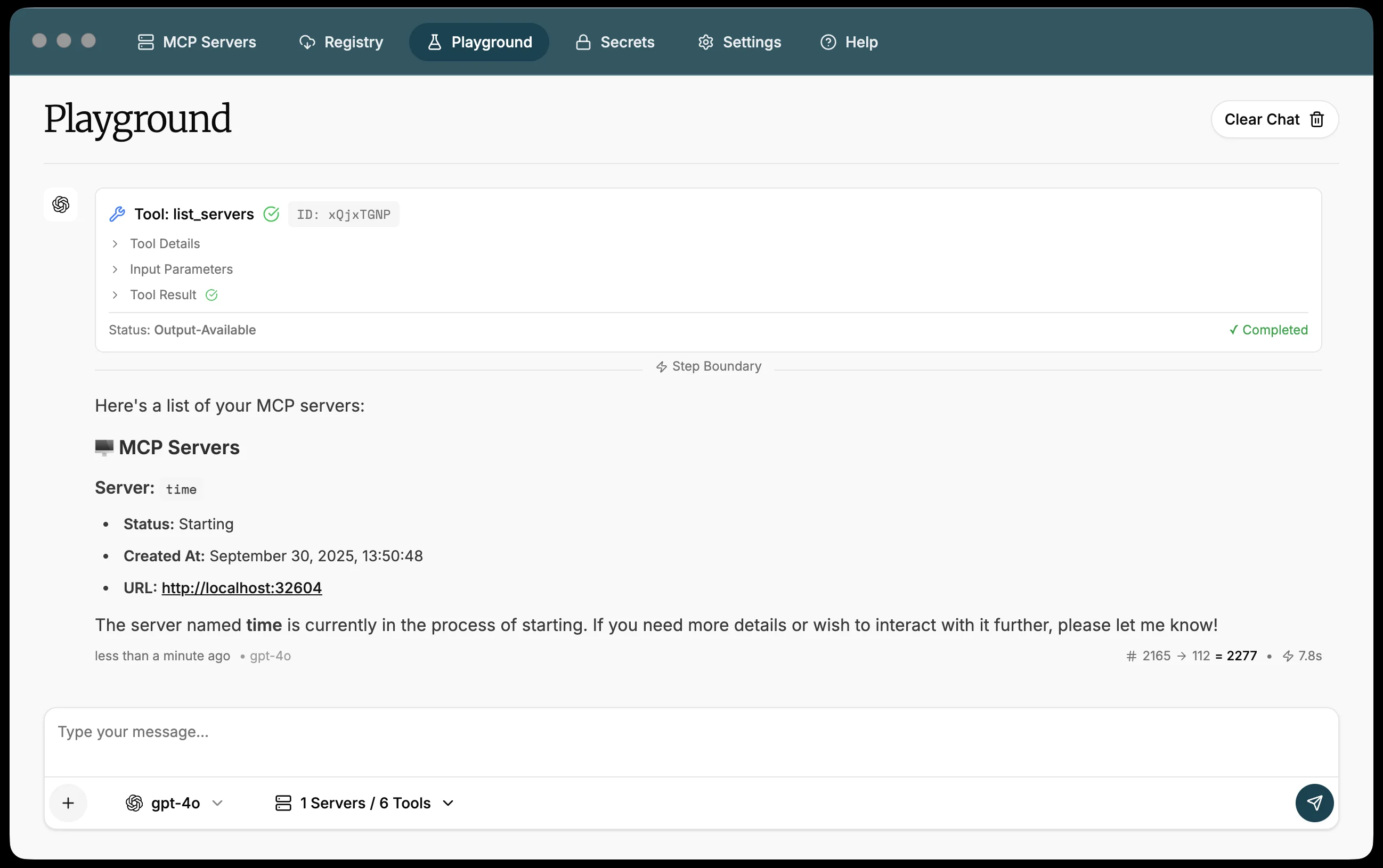
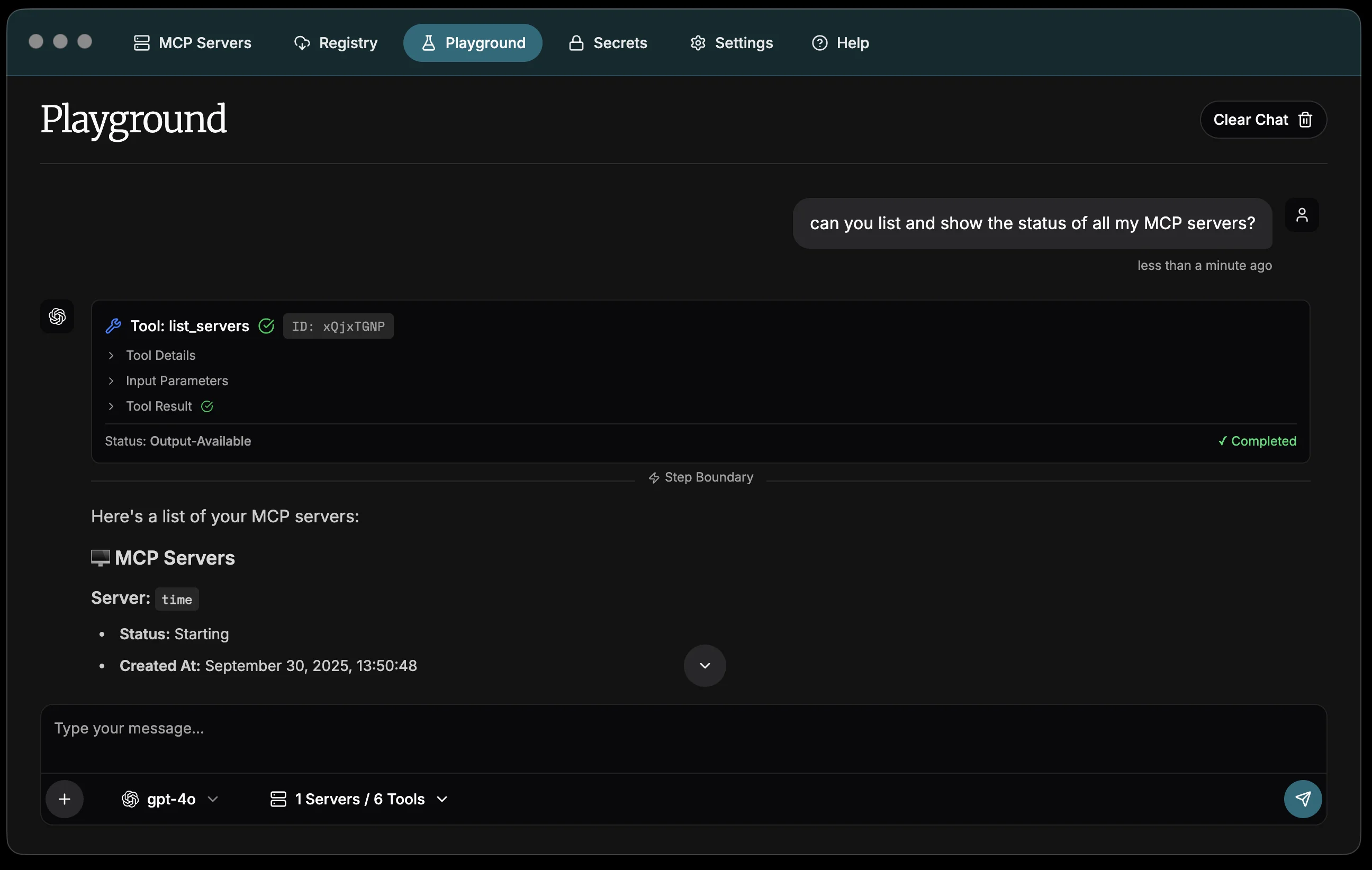
Can you list all my MCP servers and show their current status?
The AI will use the list_servers tool from the ToolHive MCP server to provide
a comprehensive overview of your server status.
Or test that an individual MCP tool is working as expected:
Use the GitHub MCP server to search for recent issues in the microsoft/vscode repository
If you have the GitHub MCP server running, the AI will execute the appropriate GitHub API calls and return formatted results.
Managing servers through conversation
The ToolHive desktop app automatically starts a dedicated MCP server
(toolhive mcp) that orchestrates ToolHive operations through natural language
commands. This approach provides several key benefits:
- Unified interface: Manage your MCP infrastructure using the same conversational AI interface you use for testing.
- Contextual operations: The AI understands your current server state and can make intelligent decisions about which servers to start, stop, or troubleshoot.
- Reduced complexity: No need to switch between the chat interface and traditional UI controls. Everything can be done through conversation.
- Audit trail: All management operations are logged in the same transparent way as tool executions, providing clear visibility into what actions were taken.
Take advantage of these integrated ToolHive management tools:
Start the fetch MCP server for me
Stop all unhealthy MCP servers
Show me the logs for the fetch MCP server
Validating tool responses
The playground shows detailed information about each tool execution:
- Tool name and description: What tool was called and its purpose
- Input parameters: The exact parameters passed to the tool
- Execution status: Whether the tool succeeded or failed
- Response data: The complete response from the tool
- Timing information: How long the tool took to execute
This visibility helps you understand exactly how your MCP servers are behaving and identify any issues with tool implementation or configuration.
Manage playground threads
The playground keeps each conversation in a separate thread so you can run
several testing sessions in parallel without losing context. Open the sidebar to
see your threads, with Starred entries pinned at the top and Recents
below. Untitled threads show as New chat until you give them a name. Each row
shows a relative timestamp (just now, Nm ago, Nh ago, Nd ago, or a short
date for older threads) so you can spot recent activity at a glance.
To work with threads:
- Start a new thread: Click New chat at the top of the sidebar.
- Rename a thread: Double-click the thread row (the tooltip
Double-click to renameconfirms the action), or open its Thread options menu and choose Rename. You can also click the title or the pencil icon at the top of the chat to rename the active thread. - Star or unstar a thread: Click the star icon next to the thread title, or open Thread options and choose Star or Unstar. Starred threads appear under Starred at the top of the sidebar.
- Delete a thread: Open Thread options and choose Delete. The
playground asks
Delete "<THREAD_NAME>"? This cannot be undone.before removing it. Confirm with Delete, or back out with Cancel.
Attach files to a message
Add images and PDFs to a message so the model can read them while it works with your MCP tools. The composer accepts up to 5 files per message, each 10 MB or smaller, and supports image files and PDFs.
To attach files:
- Open the composer toolbar menu and choose Add images or PDFs, or drag files onto the playground window. Drag-and-drop is enabled across the entire playground.
- Type your prompt and send the message. If you send a message that only
contains attachments, the playground records the message text as
Sent with attachments.
In the chat history, the playground previews each attachment alongside the message:
- Images appear inline. Click an image to open it in a larger modal preview.
- PDFs and other non-image files show as
📎 <FILE_NAME>with a Download link so you can save the original file.
If a file is rejected, the playground shows a toast that explains why:
You reached the maximum number of files/You can only upload up to 5 fileswhen you exceed the per-message limit.File size too large/The file size must be less than 10MBwhen a file is over 10 MB.File type not supported/Only images and PDFs are supportedwhen the file isn't an image or a PDF.
The composer placeholder reflects the playground state. It shows
Select an AI model to get started when no model is selected, then
Type your message... once you've chosen one.
Recommended practices
Provider security
- Use dedicated API keys for testing that have appropriate rate limits
- Regularly rotate API keys used in development environments
- Consider using API keys with restricted permissions for testing purposes
- When using local providers like Ollama or LM Studio, ensure the server URLs are only accessible on your local network to prevent unauthorized access
Server management
- Start only the MCP servers you need for testing to improve performance
- Use the playground to validate new server configurations before connecting them to production AI clients
- Test different combinations of tools to understand how they work together
Testing workflow
- Isolated testing: Test individual MCP servers one at a time to validate their functionality
- Integration testing: Enable multiple servers to test how they work together
- Performance validation: Monitor tool execution times and responses under different loads
- Error handling: Intentionally trigger error conditions to validate proper error handling
Thread and attachment hygiene
- Delete unused threads so the sidebar stays focused on the work you actually return to.
- Star the conversations you want to keep close at hand. Otherwise they get pushed down as new chats arrive in Recents.
- Treat attachments as inputs that may leak data. Strip credentials, customer information, and other sensitive content from PDFs and screenshots before sharing them with an AI provider.
Next steps
- Learn about client configuration to connect ToolHive to external AI applications
- Set up secrets management for secure handling of API keys and tokens
- Explore network isolation for enhanced security when testing untrusted MCP servers
- Browse the registry to discover new MCP servers to test in the playground
Related information
Troubleshooting
Provider not working
If a provider isn't working:
-
For API key-based providers (OpenAI, Anthropic, Google, xAI, OpenRouter):
- If you see a 401 or "invalid API key" error, double-check the key in the provider's API keys dashboard. The key may have been rotated, revoked, or scoped to the wrong project.
- If you see a 429 or quota error, check your billing and usage in the provider's dashboard.
- Confirm the key has access to the model you selected.
-
For local providers (Ollama, LM Studio):
- Verify the server is running and reachable at the configured URL, including
the port (for example,
http://localhost:11434). - For LM Studio, confirm you started the server from the Developer section.
- Check that no firewall or VPN is blocking localhost traffic.
- Verify the server is running and reachable at the configured URL, including
the port (for example,
MCP tools not appearing
If your MCP server tools aren't showing up:
- Verify the MCP server is running on the MCP Servers page.
- Click the tools icon in the playground and confirm the server's tools are enabled for this session.
- Restart the MCP server if it shows as unhealthy.
- Check the server logs for errors.
Tool execution failing
If tools fail to execute:
- Check the tool's parameter requirements in the audit log.
- Verify any required secrets or environment variables are configured for the server. See Secrets management.
- Ensure the MCP server has the permissions it needs (network access, file system access). See Network isolation.
- Review the server logs for detailed error information.